Progress meetings
A progress meeting is a catch-up with a parent about how their child is doing. P.Meeting keeps a record of each one, and turns your follow-up actions into tasks.
Watch (about 1¾ minutes):
1. The meetings list
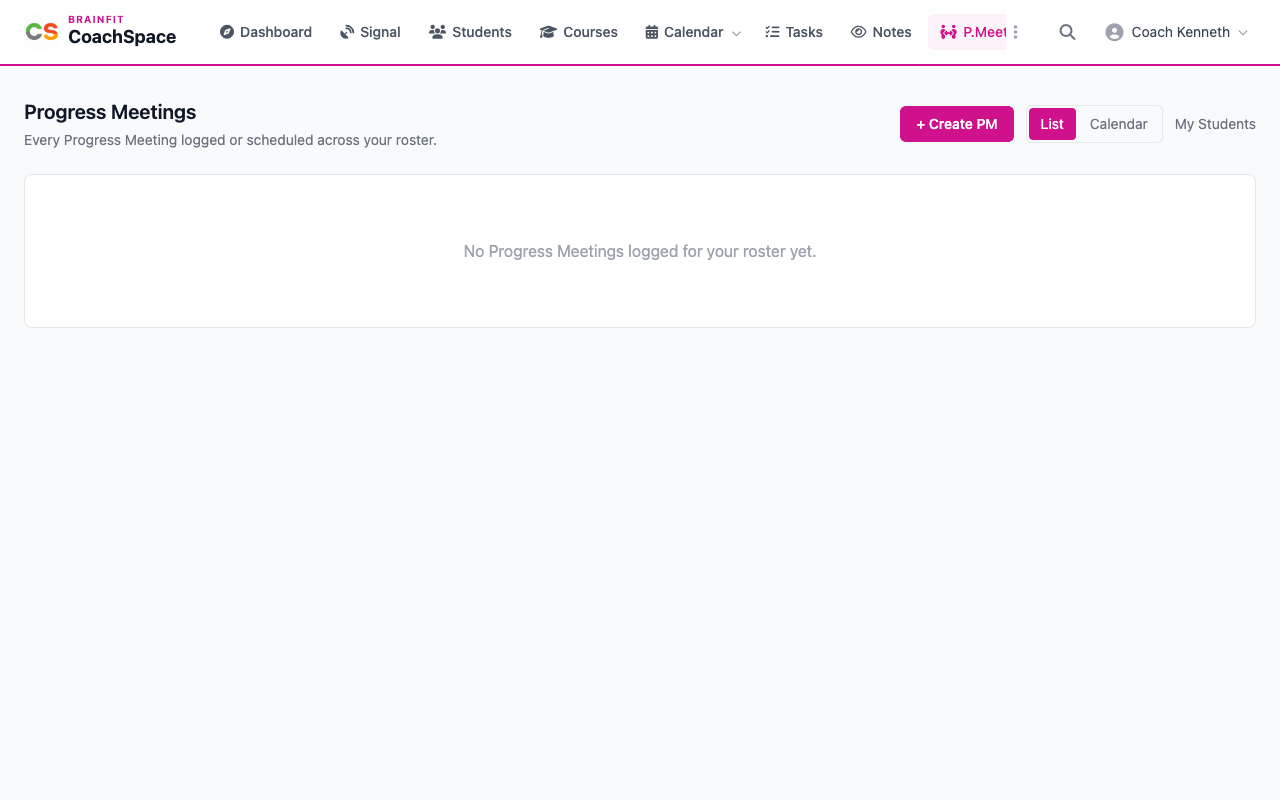
Click P.Meeting in the menu. Every meeting you held or planned is listed, with one row for each student. List and Calendar switch the view, and My Students narrows it to your own students.
2. Create a meeting
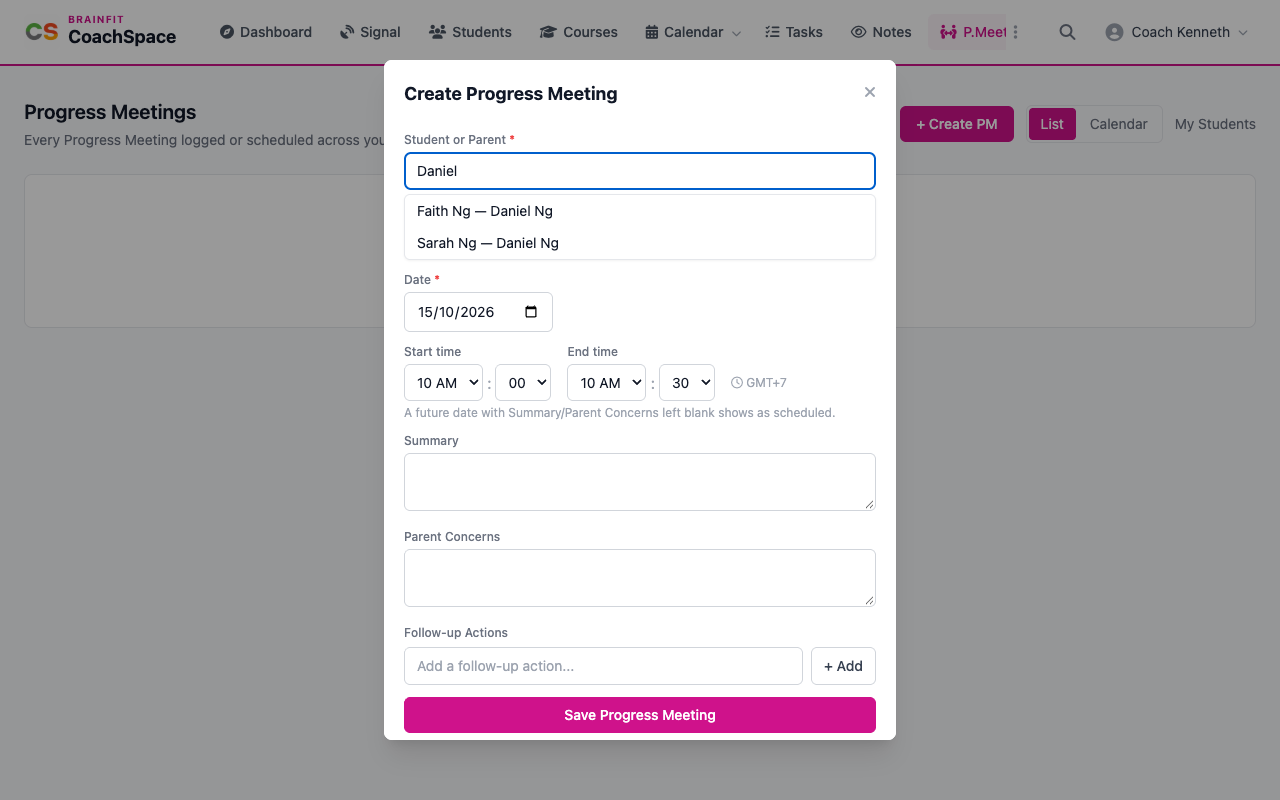
Click + Create PM. Search for the student or the parent by name and click the match (one match for each pair of parent and child).
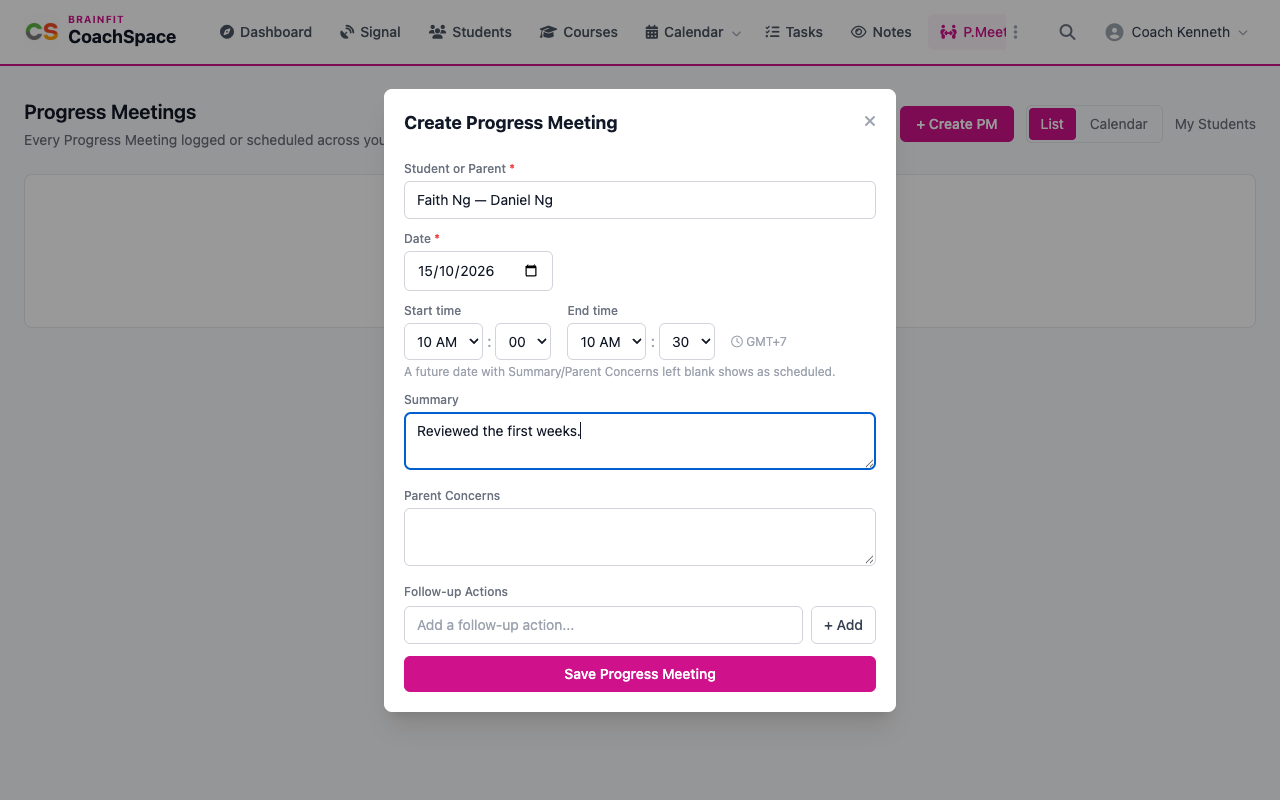
Choose the Date and the Start time and End time. A future date with the summary left blank is saved as scheduled. A meeting that already happened, with a summary, is saved as held. Write the Summary and the Parent Concerns, add any Follow-up Actions one at a time (each becomes a task for you), and click Save Progress Meeting.
Nothing is sent to the parent. The meeting is a record for you and your centre.
3. Open, edit or delete
Click a meeting to open it. Change the time, the summary or the concerns and click Save changes. The follow-up actions are listed at the bottom. Delete removes the meeting for good, after you confirm.
4. See meetings by day
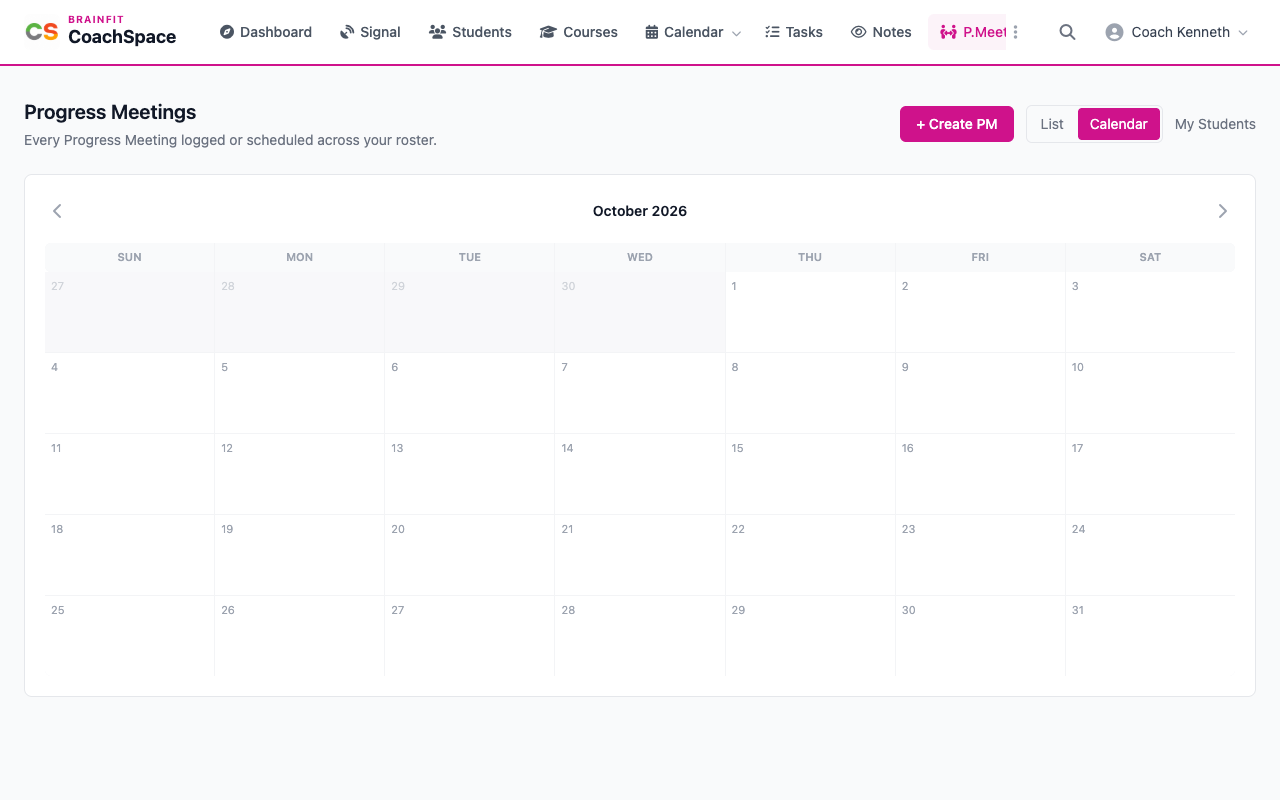
Calendar shows your meetings on their day. Click one to open it, and the + on a day adds a new one.